A few weeks ago, I took part in Greyhats’ WelcomeCTF again! They had some interesting challenges, in this writeup I’ll focus on the forensic challenges.
Challenge 1: I Have a Good Memory
This was a classic memory forensics challenge. We were given a memory dump and were asked to find the flag. A common tool to analyze memory dumps is Volatility.
About Volatility
Volatility is a tool to help us analyze crash dumps, hibernation files, and virtual machine snapshots. They recently updated it to Volatility 3, which has different commands compared to Volatility 2. I remember struggling to find the documentation for Volatility 3 last year, but this year, I think they have improved it.
Solution
After installing Volatility quite smoothly, I ran the following command to list the processes that were running before the crash:
Downloads myenv/bin/vol -f GREYHATS-1BT3-20240822-161558.dmp windows.crashinfo.Crashinfo

This gave the list of processes that happened before the crash. I noticed there was an interesting file called greyhat.exe. So we should use a file scan to extract the file.
Downloads myenv/bin/vol -f GREYHATS-1BT3-20240822-161558.dmp windows.filescan.FileScan
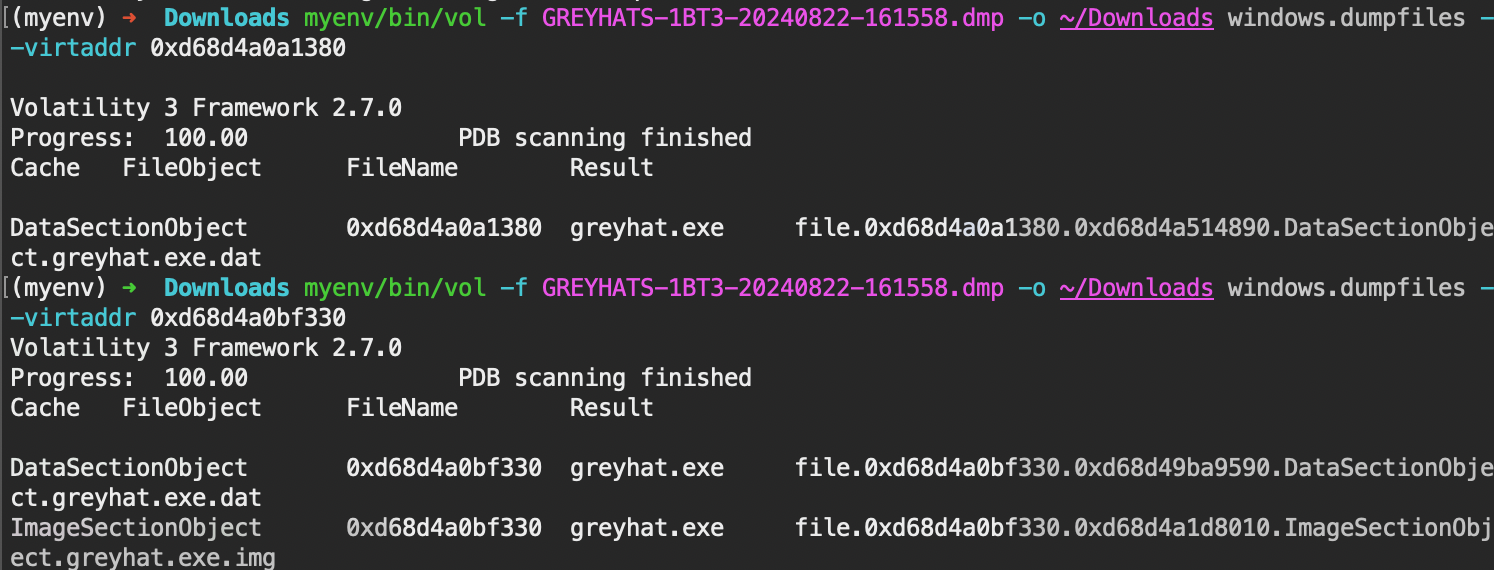
Using dumpfiles, we are able to extract the file. Upon opening the file of greyhat.exe, we see that the flag is the argument of the executable.
 Hence, we should use
 pslist to find the PID of greyhat.exe and then dump the process.
myenv/bin/vol -f GREYHATS-1BT3-20240822-161558.dmp windows.cmdline.CmdLine

From there, we are able to see the argument of the executable, which is the flag.
Challenge 2: Who are you??? SAM!
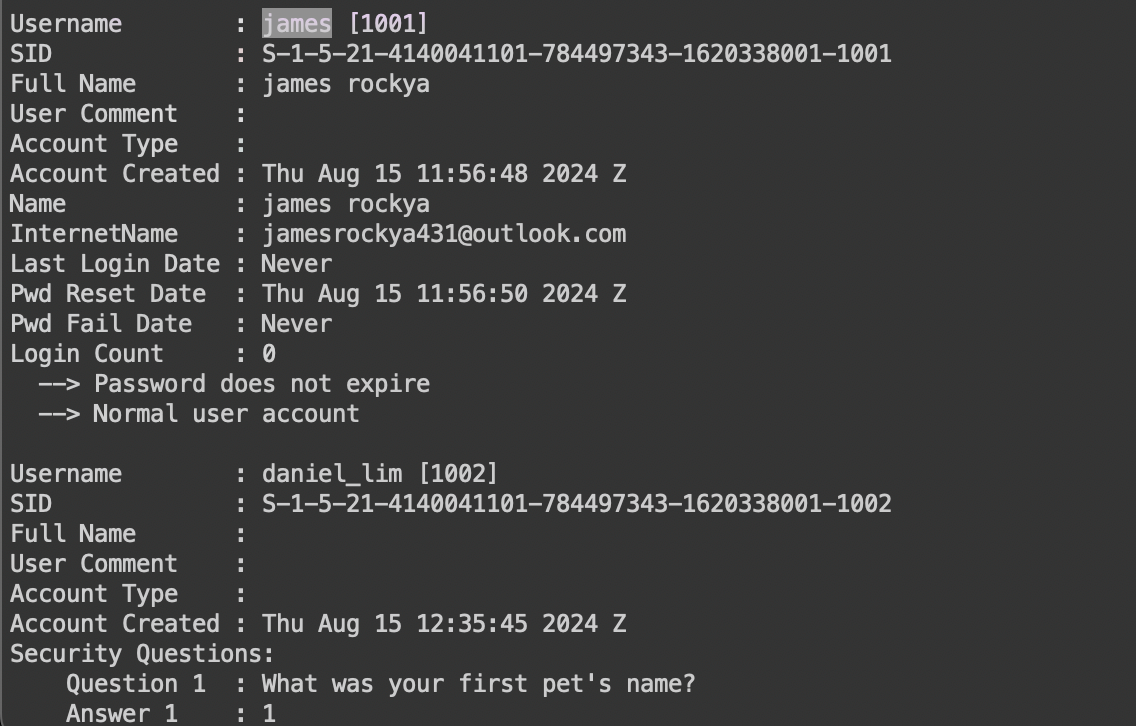
We are given a SAM file, which is a file that stores Windows registry hives. Our goal is to retrieve the admin credentials – username and account creation time. The registry hives are stored in the C:\Windows\System32\config directory. It stores the account information, groups, passwords and permission groups.
Cuz I’m on mac, I had to install a few tools like Registry-Spy to view the registry which looks like this:
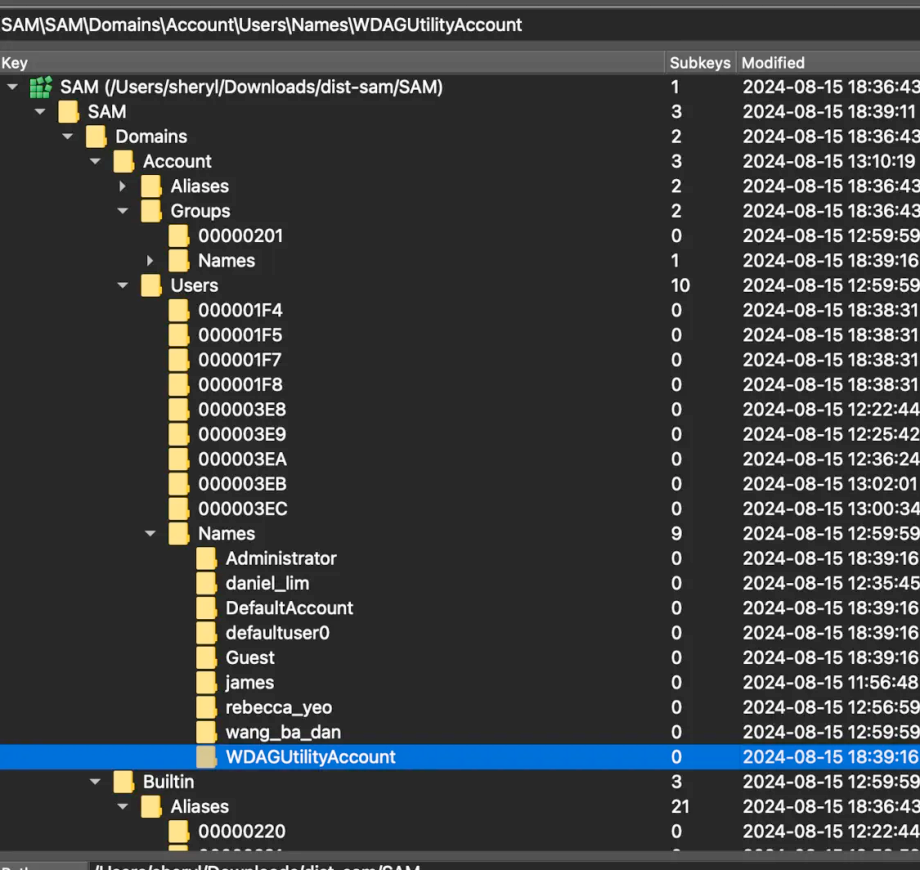
How to read it is as you can see below, there are ~9 users, the names correspond to the users id in order. Initially, when I clicked on james, I saw he had so many more fields than the other users, but this doesn’t mean that he’s admin (non-conclusive).
Some other interesting things are below in BuiltIn, it shows what kinds of permission groups there are.
Solution
Registry-Spy serves similar purpose as Windows Event Viewer, which lets us view the registry hives. However, information like user account creation is not publicly shown. While Reddit gave very discomforting information that mac doesn’t have any powerful tool to view the registry (which is true), there’s this tool called RegRipper3.0 which I found on GitHub. But it’s only available for Windows, so I had to install Wine.
After installing wine (with much debugging issues), I was able to run RegRipper3.0! I’ll sidetrack abit here because it’s my first time using Wine so I’ll talk about it.
About Wine
What exactly is Wine? How is it different from a VM? Wine is a compatibility layer that allows you to run Windows applications on Linux and macOS. It’s not an emulator, so it doesn’t require a copy of Windows to run. It translates Windows API calls into POSIX calls on-the-fly, eliminating the need for a separate Windows installation.
During installation, I found several applications worked better with wine, while others with wine-staging.
Back to RegRipper
While I have successfully got RegRipper running, mac only allows the command line version to run. RegRipper3.0 has many plugins, such as userassist. I used the samparse plugin which parses the SAM file and extracts the user information.
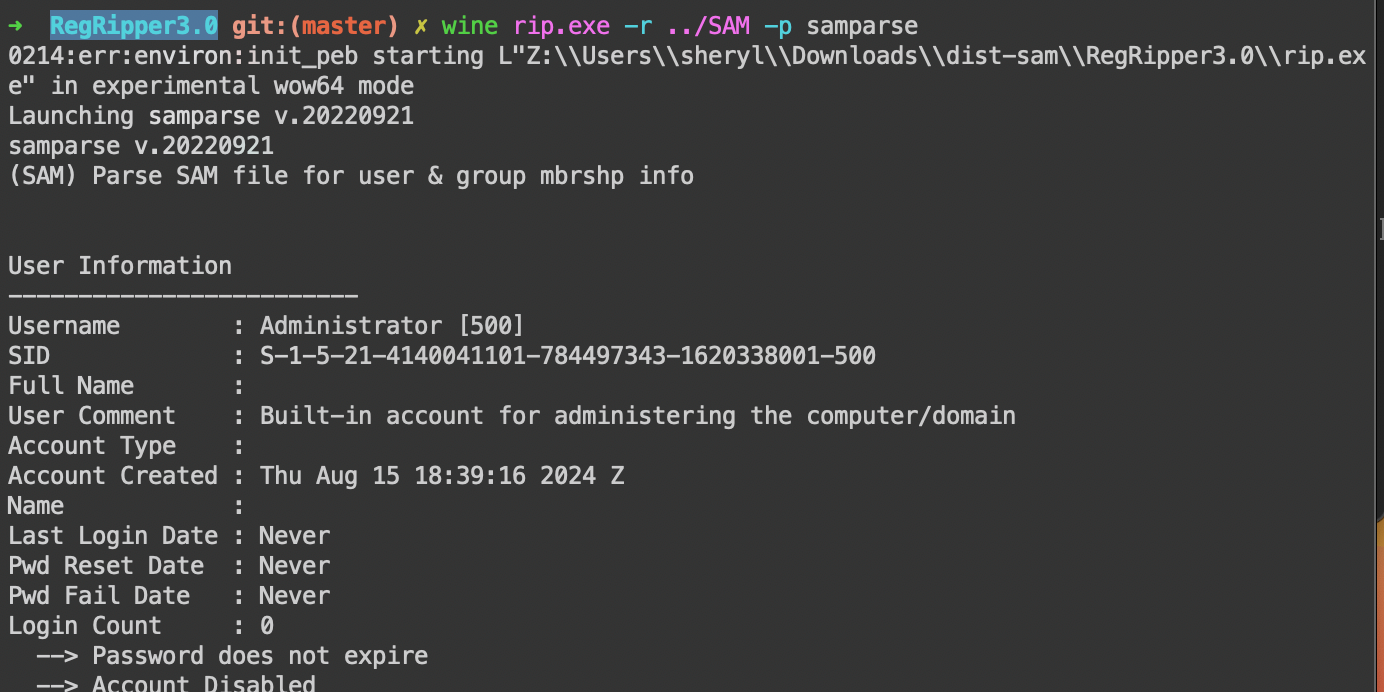
We are able to see the detailed user information, such as the username, full name,
and the last login time, and even the account creation time! (giving us our flag).